Automatic collision-free path planning
Use Automatic collision free planning to plan multiple connections in one program run. Mark the required transitions with HALT statements. During simulation, planning requests are captured with their respective scene state, and collision-free paths are calculated after the program run.
1. Prepare the scene and program
- Select the robot and the program to execute. The program must be able to run to completion in simulation.
- Prepare the scene, including tools, workpieces and obstacles. Configure the collision lists to be considered, particularly for self-collisions.
- Check the tool and base coordinate systems. For external axes, follow the base initialization workflow.
- Ensure that the backend is connected and a valid license is available.
- Select the required path planning settings, such as motion type, minimum clearance and termination condition.
2. Mark transitions with HALT
In the program editor, insert a HALT statement between the start and goal positions of each connection to plan.
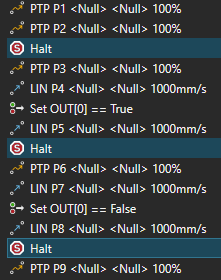
This example creates three planning requests and would pick up an object and place it down again:
| HALT | Start | Goal |
|---|---|---|
| First HALT | P2 | P3 |
| Second HALT | P5 | P6 |
| Third HALT | P8 | P9 |
The start is the last position statement executed before the HALT. The goal is the next position statement executed afterwards. The actual execution order matters, including subroutines, branches and loops. In this example, the motion from P1 to P2 is not replanned.
Especially when gripping an object, ensure that the positions before and after the HALT meet the minimum clearance specified in the settings. Otherwise, no path can be planned.
Place an explicit start position before each HALT and an executable goal position afterwards. A HALT at the end of the program without a subsequent goal does not produce a complete request. Consecutive HALT statements do not create additional connections.
3. Start automatic planning
- Open the Collision Free Path Planning section of the OCP tab.
- Click Automatic collision free planning.
- The simulation is reset and the robot program starts. At each HALT, the function captures the planning data and automatically resumes execution.
- Wait for the program to finish and for the subsequent backend calculation.
At the HALT, the world model and current tool and base data are captured. The goal is added when the next position statement is reached. This allows different workpiece states during program execution to be considered, for example. Gripped objects are also reassigned and taken into account during path planning.
Repeated execution of a HALT in a loop can create multiple requests. The goal name includes the iteration number in parentheses, starting at 0, for example P2 -> P3 (0) and P2 -> P3 (1). This suffix identifies the loop iteration, not the solution variant.
The simulation run initially collects requests. The marked transitions are planned afterwards. During collection, simulation still uses the original motions.
4. Integrate the results
Generated path statements are appended to the statement scope containing the HALT, such as the corresponding routine or loop body. Their names describe the connection as Start -> Goal. When multiple solutions are returned, variants are also numbered.
- Review the calculated paths and any reported errors or unsolved requests.
- Match the desired path statement to its marked transition by name and place it there. Original motions and HALT statements are not replaced automatically.
- Remove the planning HALT markers when they are no longer needed in the final sequence, and avoid duplicate transition motions.
- Check the assembled program sequence in simulation.
Info
Generated paths and motion points have NULL references for tool and base, because these coordinate systems can change during program execution. The calculated robot positions remain valid. If the points need specific tool and base references, re-teach them using the appropriate coordinate systems.
If no result is produced
- The start button is disabled: Check the license and whether the selected robot’s active program contains at least one HALT. Another run cannot be started while the operation is in progress.
- A transition is missing: Check whether the HALT was actually executed and a subsequent position statement was reached. Program branches that are not executed do not produce requests.
- A connection cannot be solved: Review the messages, start and goal configurations, collision lists and path planning settings. You can then rerun path planning for the individual connection afterwards.
- The simulation was reset: Requests already fully collected are still submitted for calculation afterwards. An open request without a goal is discarded, so the results may be incomplete.
For planning directly between selected positions, see the Path planning workflow.