Path Planning
Automatic collision free planning
Paths can be planned automatically by adding HALT statements to the robot program. During simulation, automatic planning collects each connection from the preceding to the next executed position statement and calculates collision-free paths after the program run. The results are added to the program. For details on preparation and integrating the results, see the Automatic collision-free path planning workflow.
Path Planning Settings (Options)
| Option | Description |
|---|---|
| Available Settings | Displays the selection of saved settings. Selecting the “Default” settings displays the read-only default settings. |
| Settings Name | Allows you to change the name of the selected settings. |
Clicking Add copies the current settings and adds new settings. Clicking Delete removes existing settings. The default settings cannot be deleted.
The settings for PTP movements are shown in the left column, and the settings for a LIN movement are shown in the right column. Please note that settings can only be changed if the default settings are not selected.
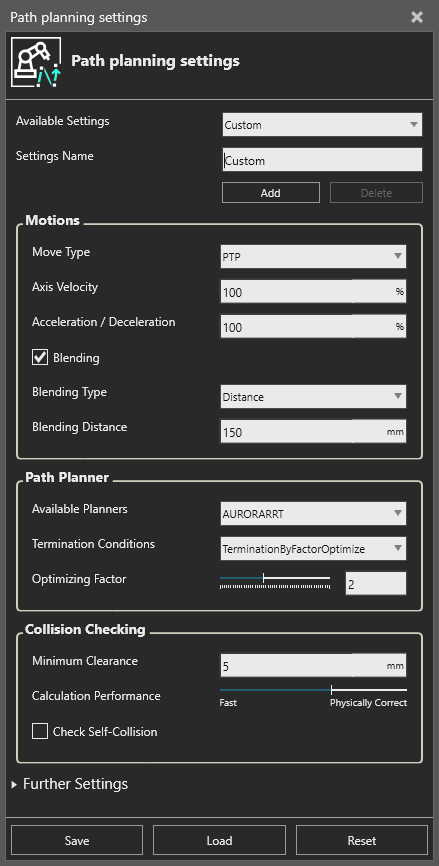
For PTP-Movements
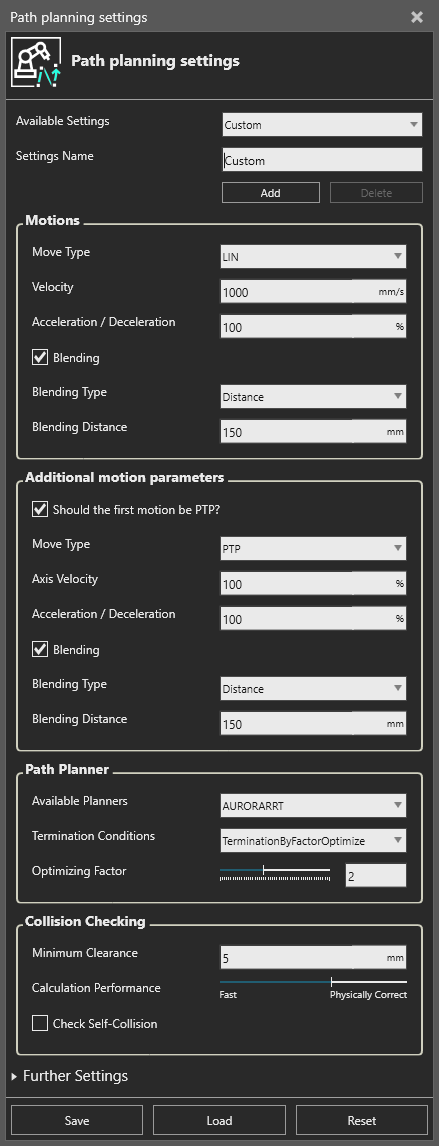
For LIN-Movements
Motions
| Option | Description | Dependence |
|---|---|---|
| Move Type | Provides a selection of the movement statements that can be generated. You can choose between PTP and LIN here. | |
| Axis Velocity / Velocity | Defines the desired axis speeds in % for PTPs. / Defines the desired linear speed in mm/s for LINs. | |
| Acceleration / Deceleration | Value for acceleration and deceleration, expressed as a percentage of the generated motion. | |
| Generate as cartesian positions | When this function is enabled, all positions generated by PTP statements are saved as points with the coordinates x, y, z, a, b, c, as well as the tool and base. When it is disabled, the points are saved directly as axis angles. Saving as axis angles is sometimes absolutely necessary, but it has the disadvantage of ignoring the tool and base transformations as well as the absolute measurement on the actual robot. | ‘Move Type’ PTP & KUKA program editor |
| Blending | Switch blending on and off. If blending is selected, the blending type is displayed (Distance) and the blending distance can be specified in mm in the field below.. | |
| Blending Type | Selection for the different blending typs. Currently only distance is supported. | ‘Blending’ active |
| Blending Distance | Specifies the distance for blending in mm. | ‘Blending’ active & ‘Blending Type’ Distance |
Additional motion parameters
These options are only active if LIN is selected as the ‘Desired Motion Type’ under Motions.
| Option | Description | Dependence |
|---|---|---|
| Should the first motion be PTP? | Decide on the LIN-motion planning, if the first motion, that is the startpoint, should be a PTP-motion or remain a LIN-Motion. | |
| Move Type | Provides a selection of the movement statements that can be generated. In this case it is always a PTP-motion. | ‘Should the first motion be PTP?’ active |
| Axis Velocity | Defines the desired axis speeds in % for PTPs. | ‘Should the first motion be PTP?’ active |
| Acceleration / Deceleration | Value for acceleration and deceleration, expressed as a percentage of the generated motion. | ‘Should the first motion be PTP?’ active |
| Generate as cartesian positions | When this function is enabled, all positions generated by PTP statements are saved as points with the coordinates x, y, z, a, b, c, as well as the tool and base. When it is disabled, the points are saved directly as axis angles. Saving as axis angles is sometimes absolutely necessary, but it has the disadvantage of ignoring the tool and base transformations as well as the absolute measurement on the actual robot. | ‘Should the first motion be PTP?’ active & KUKA program editor |
Path Planner
| Option | Description |
|---|---|
| Termination Conditions | Gives the backend a termination criteria to terminate the calculation. Either on first solution found, on time or on a factor for an optimal solution. |
Depending on the selected termination condition, a control will appear. The available settings are described in the following section.
Termination Conditions
- Termination by Time: Time limit in seconds after which the calculation should be terminated. The slider for the planning time ranges from 0s to 360s, but larger values can also be entered manually.
- Termination by Time Optimize: The software calculates until a solution is found (indefinitely if there is no solution). Once a solution has been found, the programm is optimized for a specified time.
- Termination by Factor Optimize: The software calculates until a solution is found (indefinitely if there is no solution). The time taken to find the first solution is measured. Once a solution has been found, it is optimized again. The duration of the optimization is calculated from the time taken for the first solution multiplied by the specified factor.
- Termination by First: The calculation stops as soon as the first solution is found.
Collision Checking
| Option | Description |
|---|---|
| Minimum Clearance | Defines a minimum distance that should be held between two objects. The value must be greater than 0. |
| Calculation Performance | Specifies whether priority is given to the accuracy of the result or to the speed of the calculation. Low values may result in collisions not being detected, while higher values may cause calculations to take longer. |
| Check Self-Collision | Enable or disable the self-collision tests. For more information, see collision lists. |
Further Settings
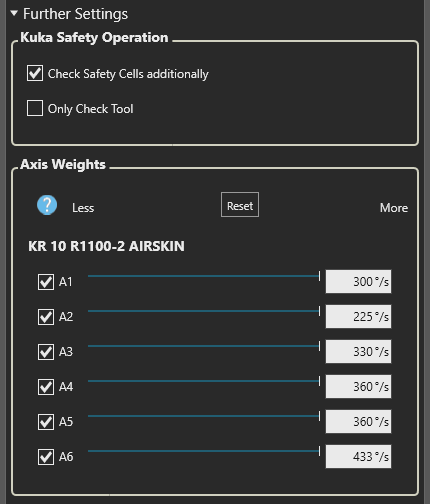
Kuka Safety Operation
- Activates additional verification of the security configurations that have been created.
- You can choose whether to check only the tool or the entire robot and tool.
- Further information can be found in the Safety Configuration section.
Axis Weights
- Weights the priority with which the axes are moved in motion planning.
- A higher value means that the axis is moved more frequently than the other axes, while a lower value means that it is moved less frequently.
- If an axis is not selected, the planning system will attempt not to move the axis at all.
Save, Load and Reset
- Save stores the current settings in a local configuration file.
- Load allows these settings to be loaded from the configuration file again.
- Reset restores the default settings.