Process Modeling
Using Visual Components or KUKA.Sim with an Addon the Process Modeling can give you the option to quickly generate robot scenarios and also robot programs.
The robot can be moved automatically by the Process Modeling Robot Controller. This execution can be recorded and then played back. A video demonstration can be found in the Visual Components Academy.
Recording and robot program view
To view all available product flows, please switch to the “Process” tab and access the “Flow” view. By clicking on a flow arrow, you can access the relevant properties.
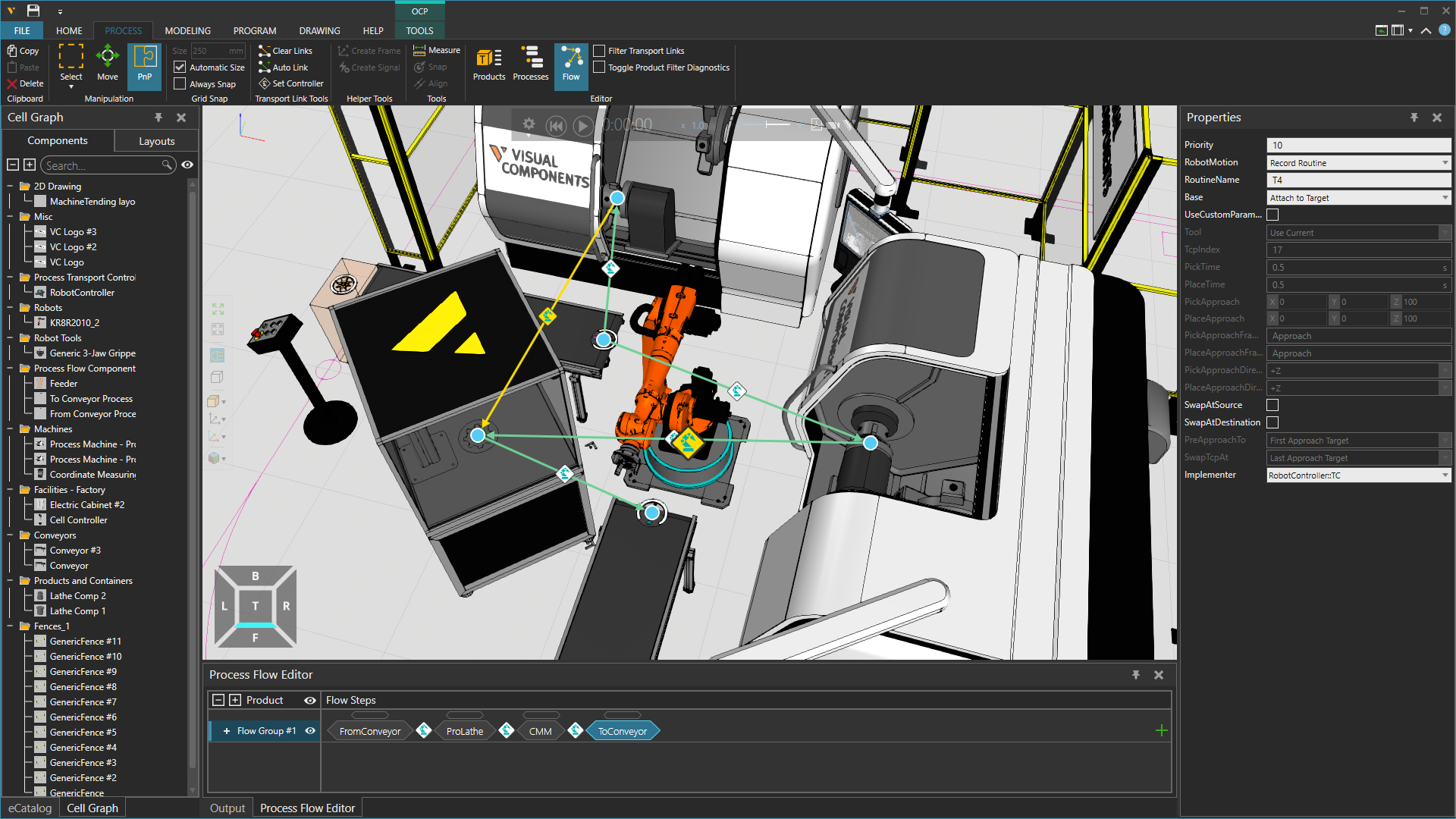
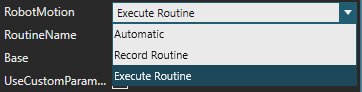
The property “Robot Motion” defines the routine’s execution. Once you have selected “Record Routine”, please allow the simulation to run until all routines have been executed. You can then select “Execute Routine” to run the recorder program.
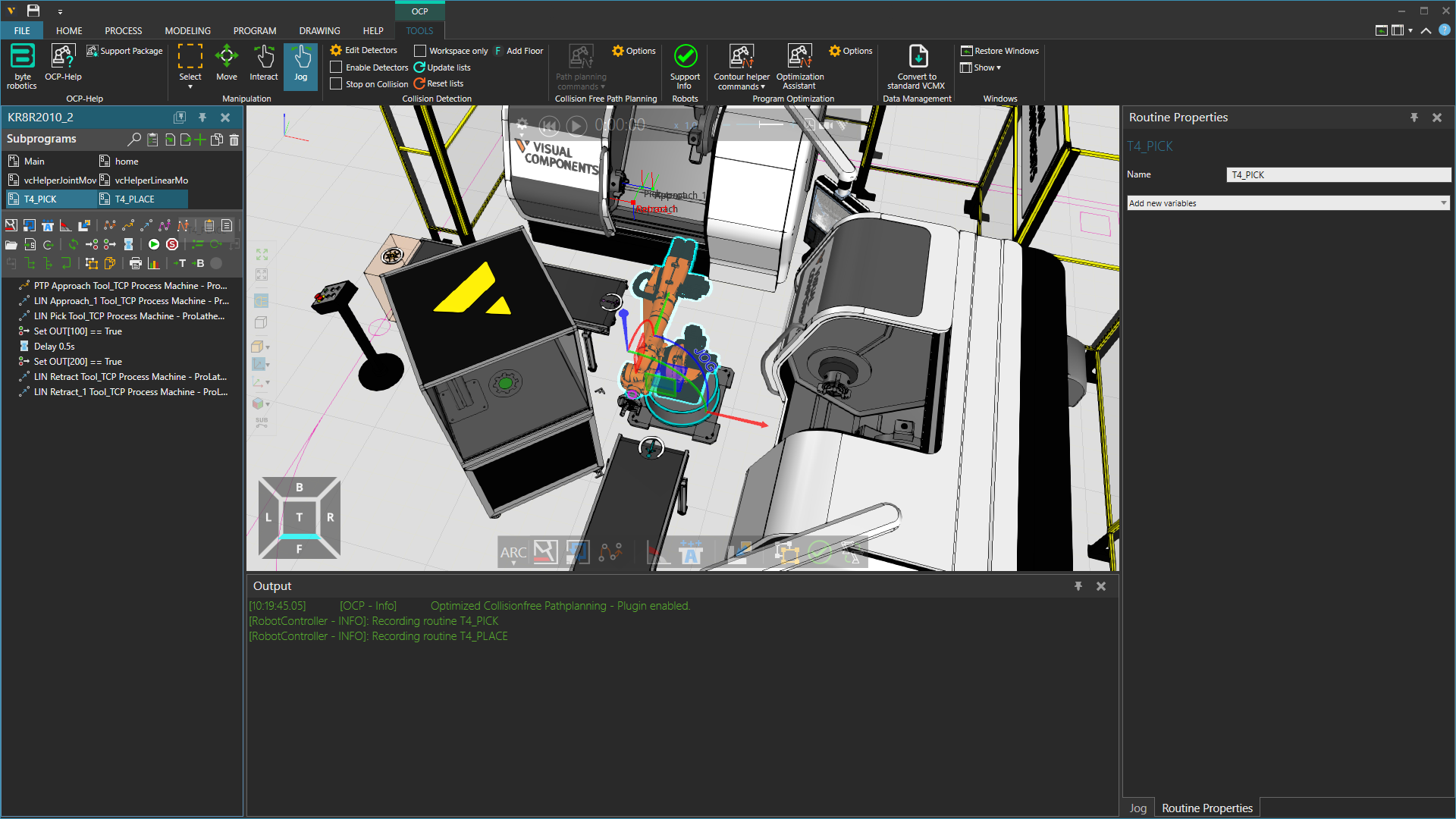
Switching to the OCP-Tools tab will enable you to view the two created programs.
Steps to plan collision free paths
In the following step-by-step description, “RoutineName” refers to the routine name specified in the previous flow properties.
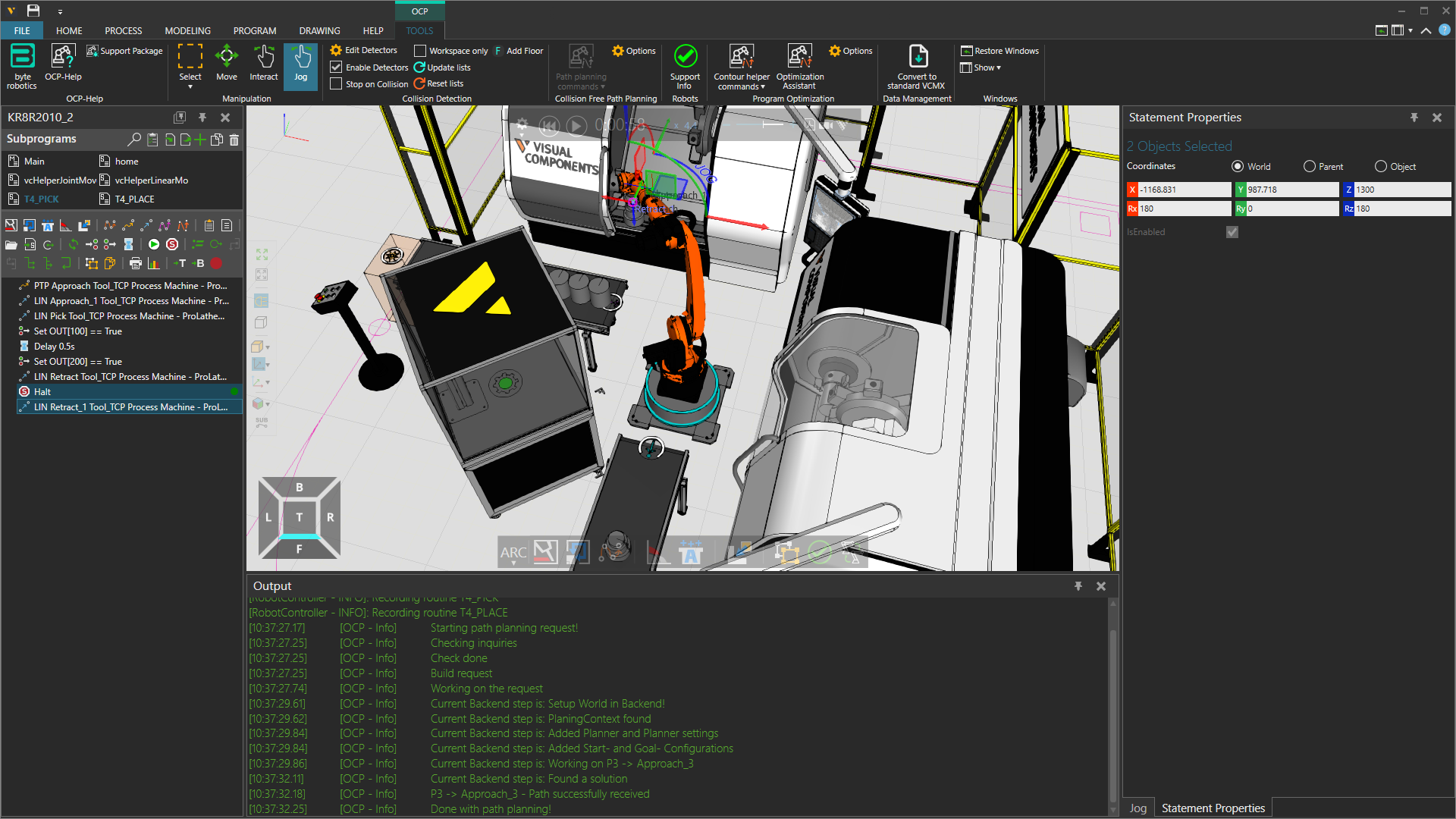
- Please add an HALT-Statement to the “RoutineName_Pick” program behind the first retract statement. This will halt the simulation with the picked product.
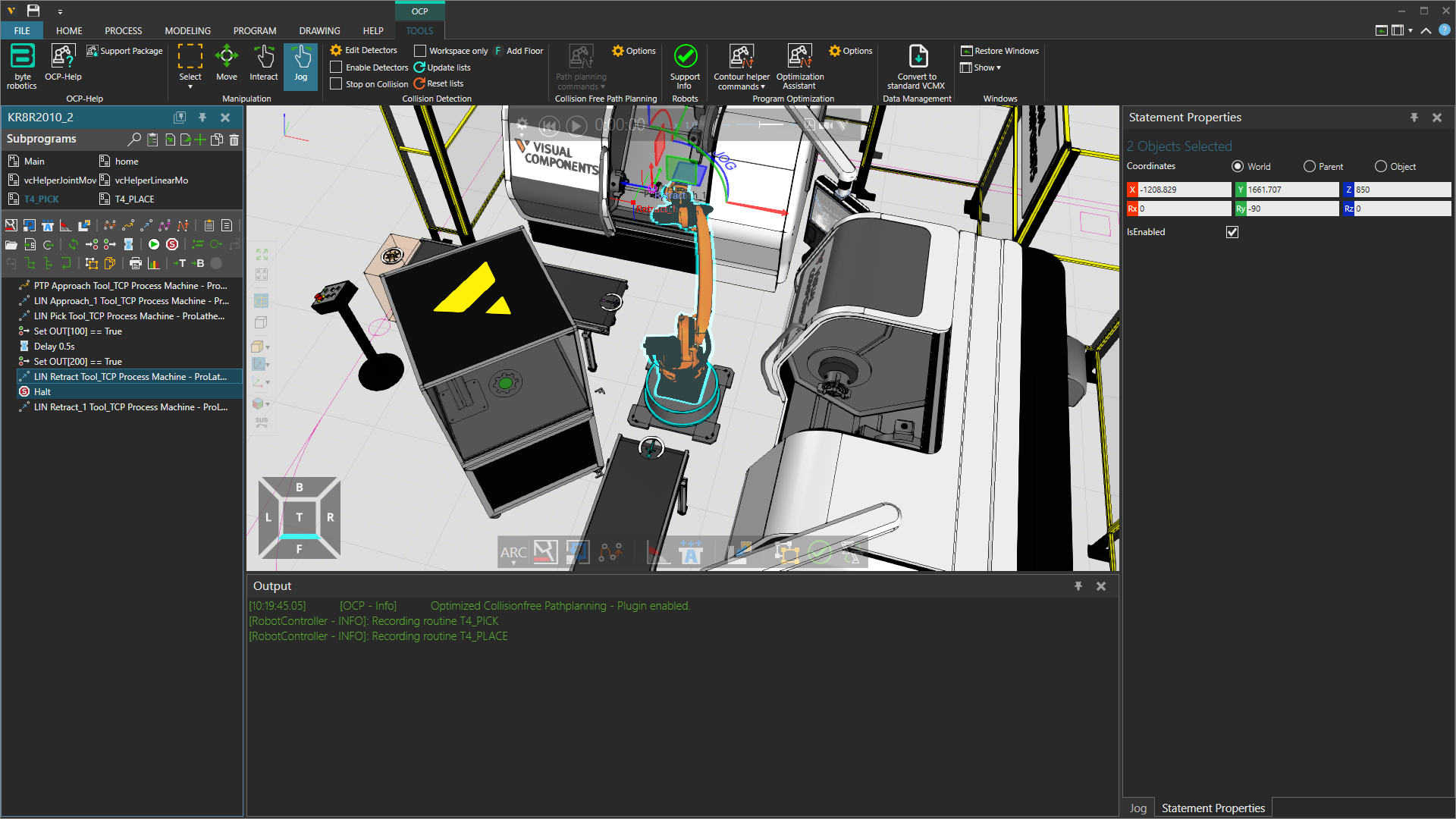
- Allow the simulation to run until it reaches the HALT-Statement.
- Use the “Update lists” button to make the necessary adjustments to the collision list with the newly picked component. This will generate a new list.
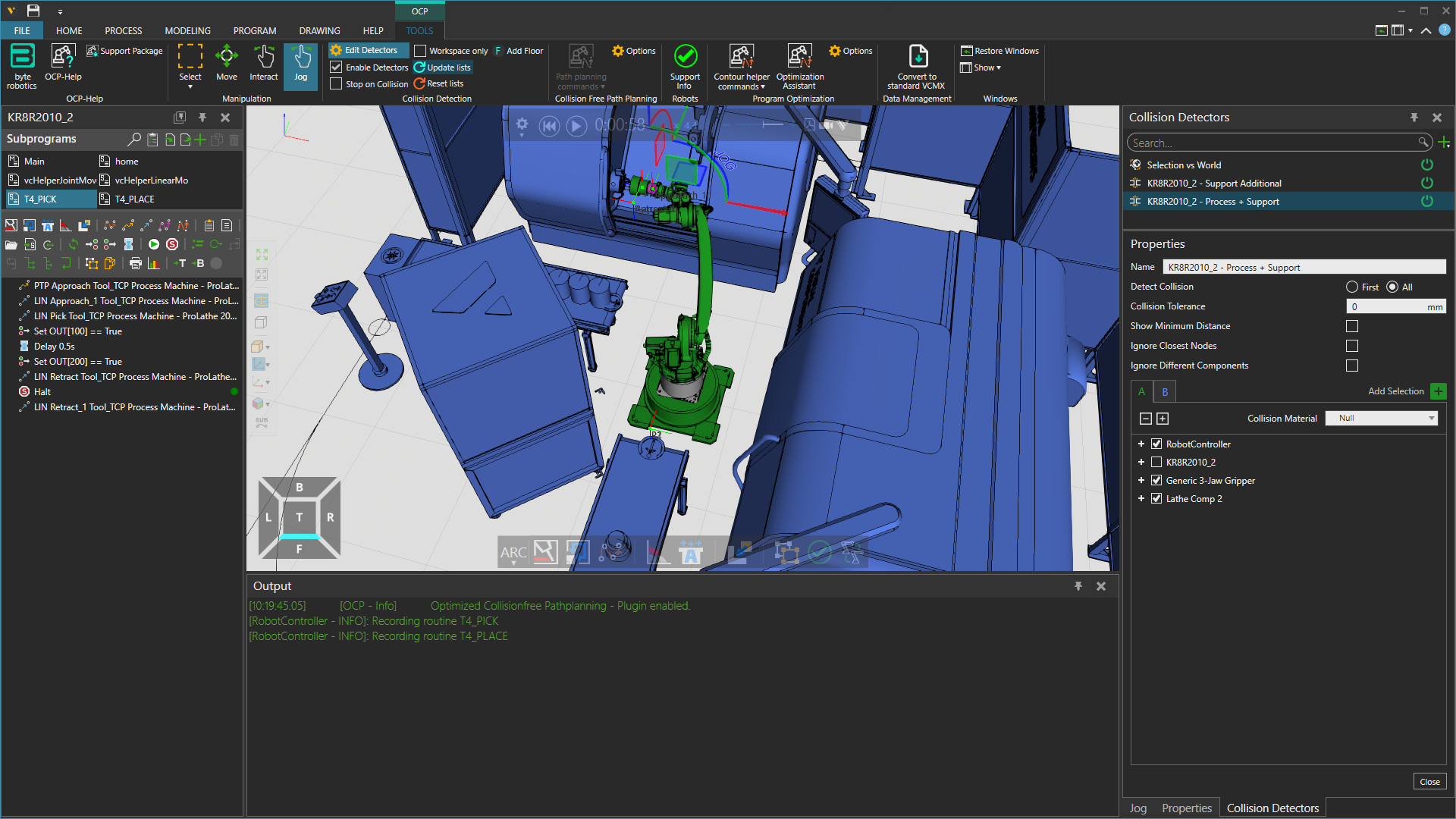
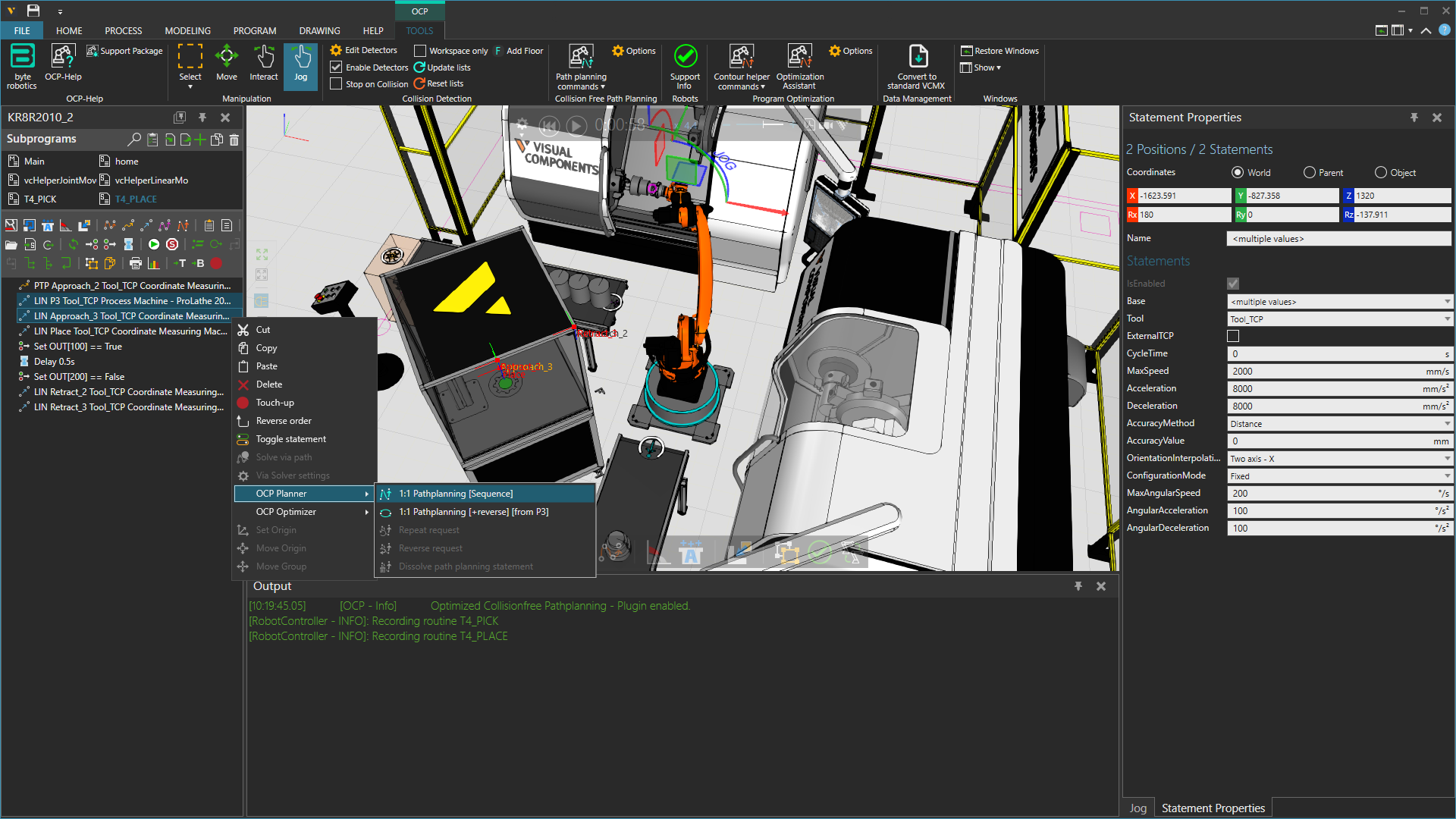
- The first retract statement can now be copied to the “RoutineName_Place” program and inserted immediately before the first “LIN Approach” statement.
- If you select the copied statement, you will have the option to plan a collision-free path using the first “LIN Approach” statement.
Warning
In certain instances, it may not be possible to use the recorded point and the connected robot motion cannot be used to make a collision-free path planning request. This could be an issue, due to the fact that the robot is unable to reach it under the given parameters. Please attempt to relocate the robot and the connected controller by moving or rotating them slightly. It is possible that another motion recording is required.
- Following the calculation, a path will be displayed at the end of the program. Please be advised that the two statements previously created for planning purposes can now be deleted. Also note that all statements preceding those statements should also be deleted.
It is also necessary to move the path planning statement to the top of the program to keep the program order.
{
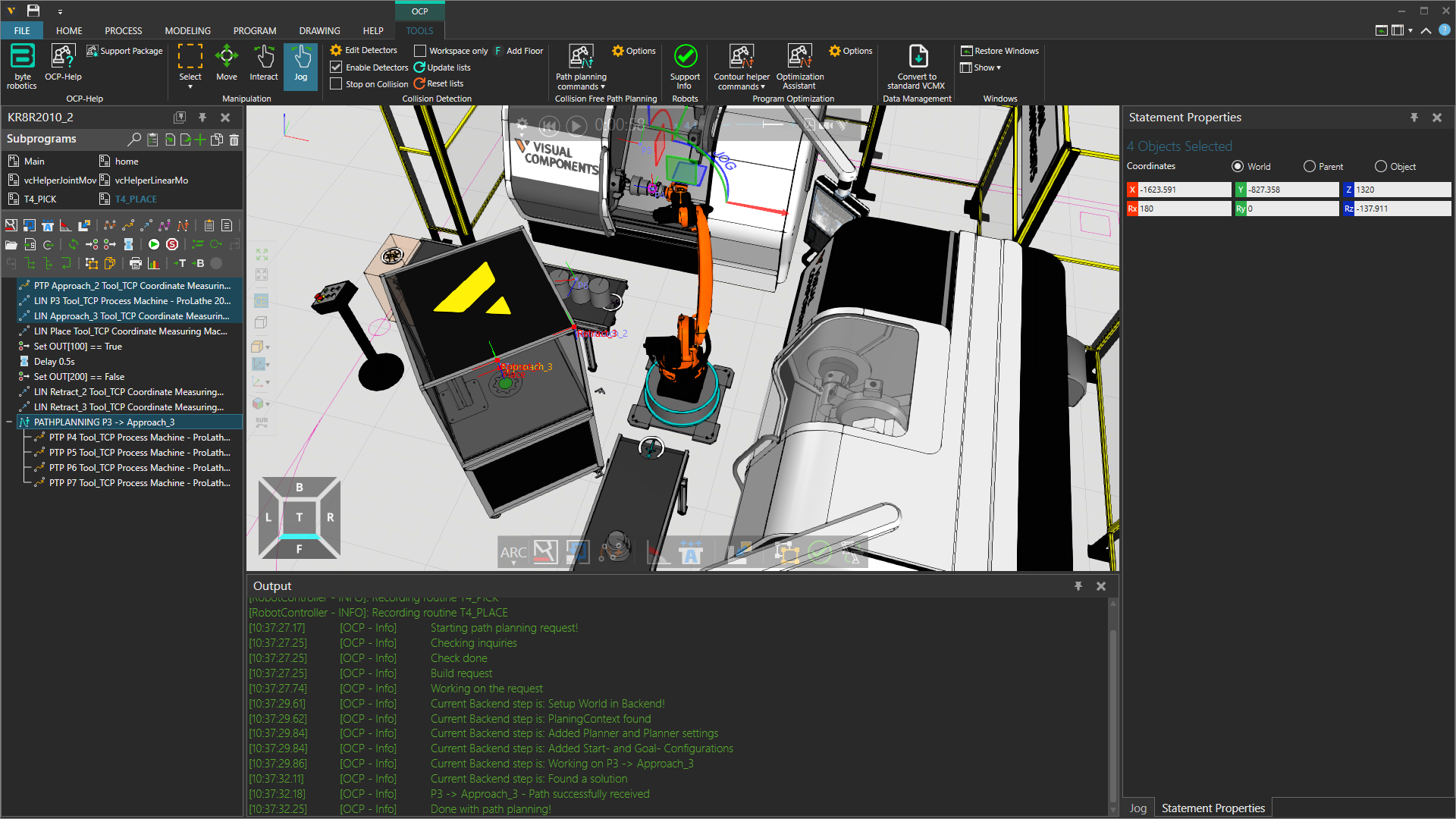
- Finally, it is necessary to switch back to the “RoutineName_Pick” program and remove the HALT-Statement and all subsequent statements.
- Reset the simulation and run it again in order to see the results.
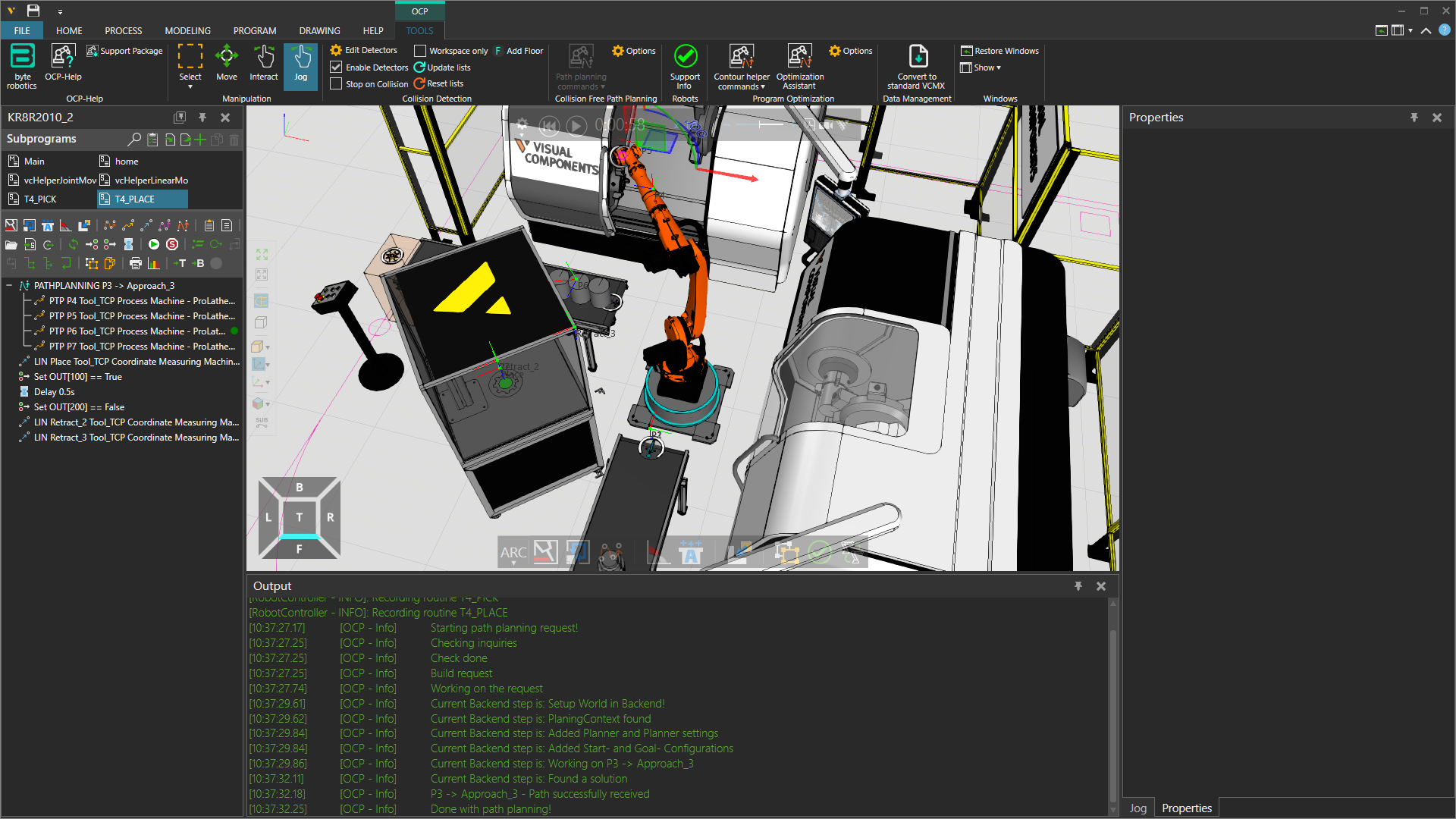
Each routine can be developed in a similar manner.
Warning
With regard to the scene and the objects present, there is a possibility that, despite the simulation indicating otherwise, objects may be obstructing the way.
By adjusting the collision detectors, you can ensure that the collision-free path will be checked in the backend. Please ensure that only the necessary nodes are selected, ensuring that no unnecessary ones are included.