Program Optimization
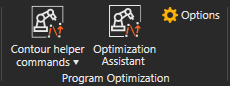
Optimization Assistant
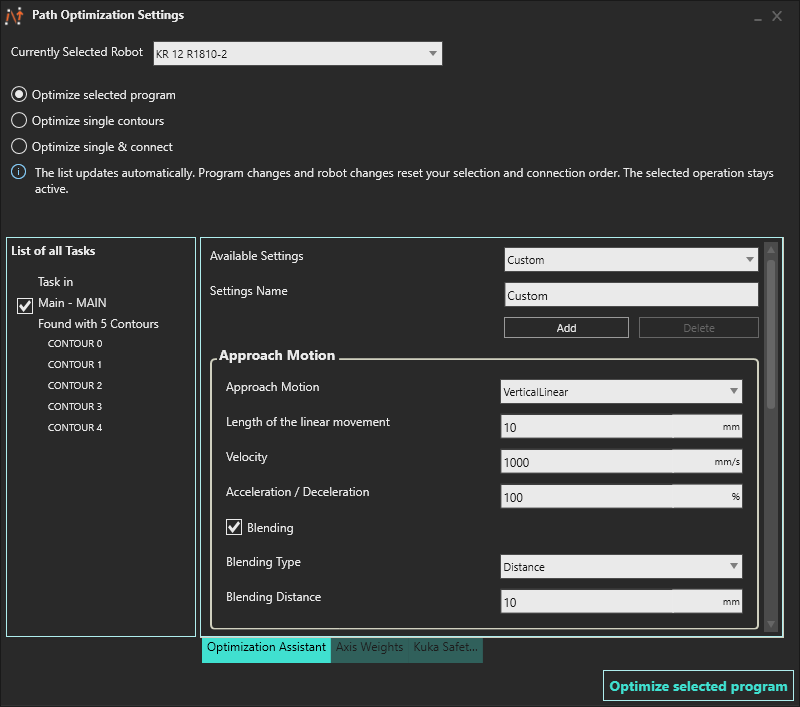
Clicking the “Optimizations Assistant” button opens a new window.
The Optimization Assistant then provides an overview of the individual tasks that can be optimized. To perform program optimization, at least one task must be selected.
 |
 |
 |
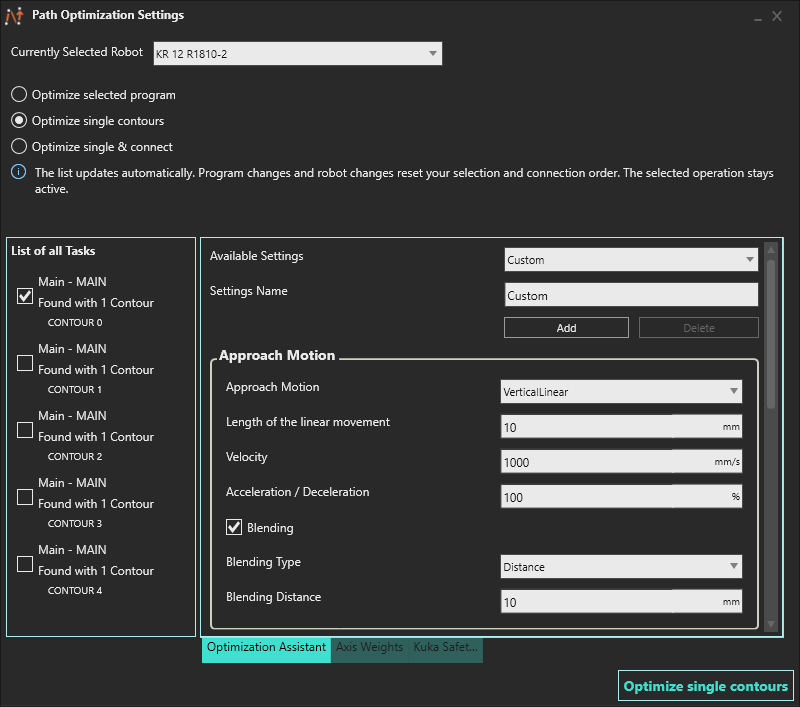
There are three types of requests that can be startet from the assistant:
| Optimize selected program | Optimize single contours | Optimize single & connect |
|
 |
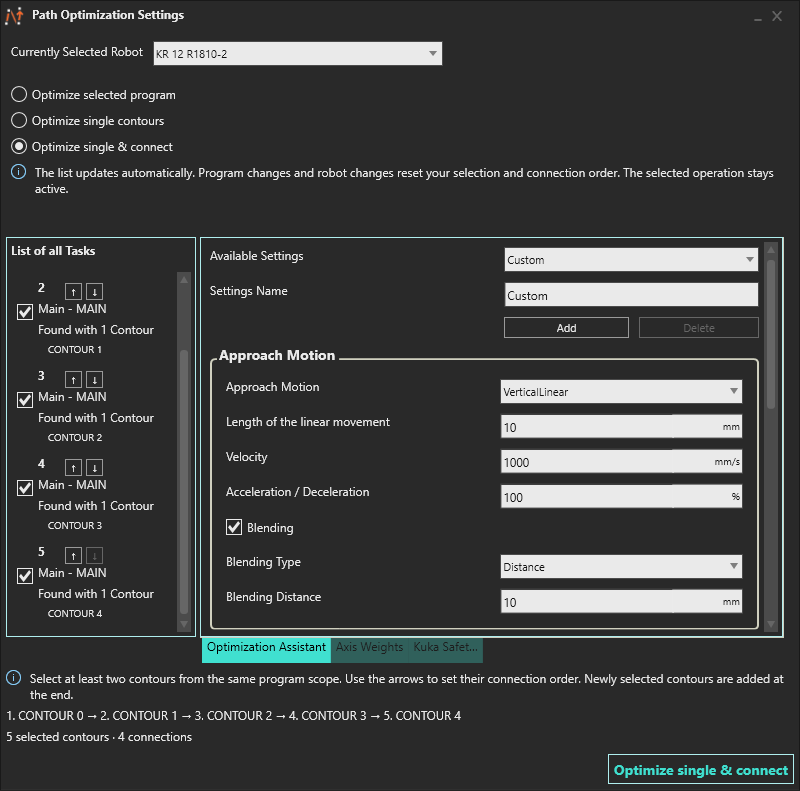 |
| Contours that are separated by motion statements or scopes are recognized as one task. The contours of a task are optimized both in relation to one another and in relation to the surrounding motions. | All contours are grouped into separate tasks to make them executable. | Optimizes the selected contours individually, then plans and inserts collision-free connections between the generated contours in selection order. |
For step-by-step instructions on optimizing and connecting contours, see the contour optimization workflow.
The assistant provides an overview of the available settings. These settings can also be viewed under “Options”. The following section explains each parameter.
Program Optimization Settings (Options)
| Option | Description |
|---|---|
| Available Settings | Displays the selection of saved settings. Selecting the “Default” settings displays the read-only default settings. |
| Settings Name | Allows you to change the name of the selected settings. |
Clicking Add copies the current settings and adds new settings. Clicking Delete removes existing settings. The default settings cannot be deleted.
The left-hand column shows the default settings, which cannot be changed. The settings in the right-hand column can be fully adjusted.
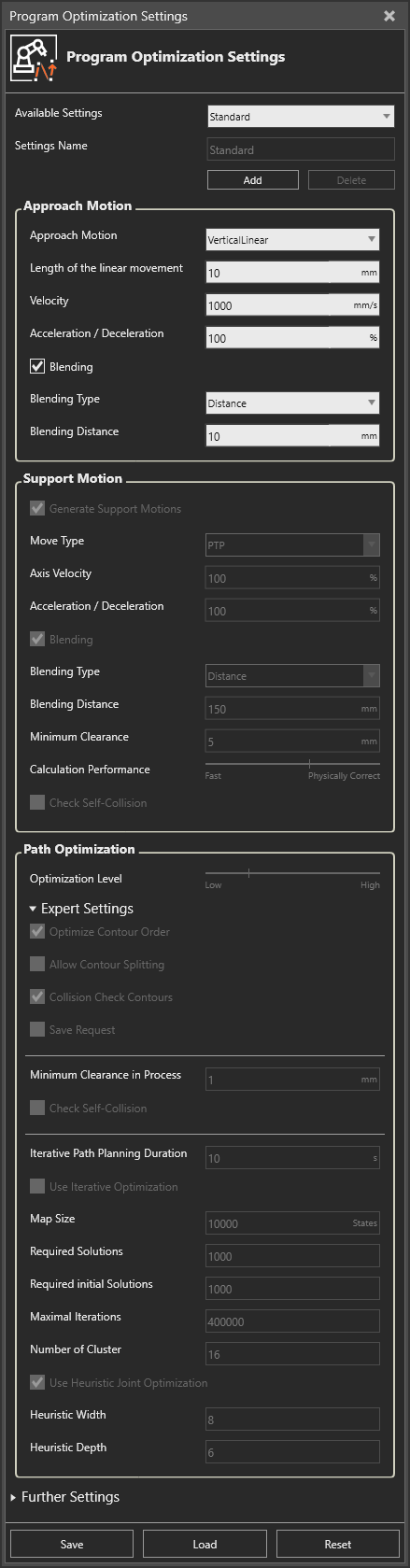
Standard
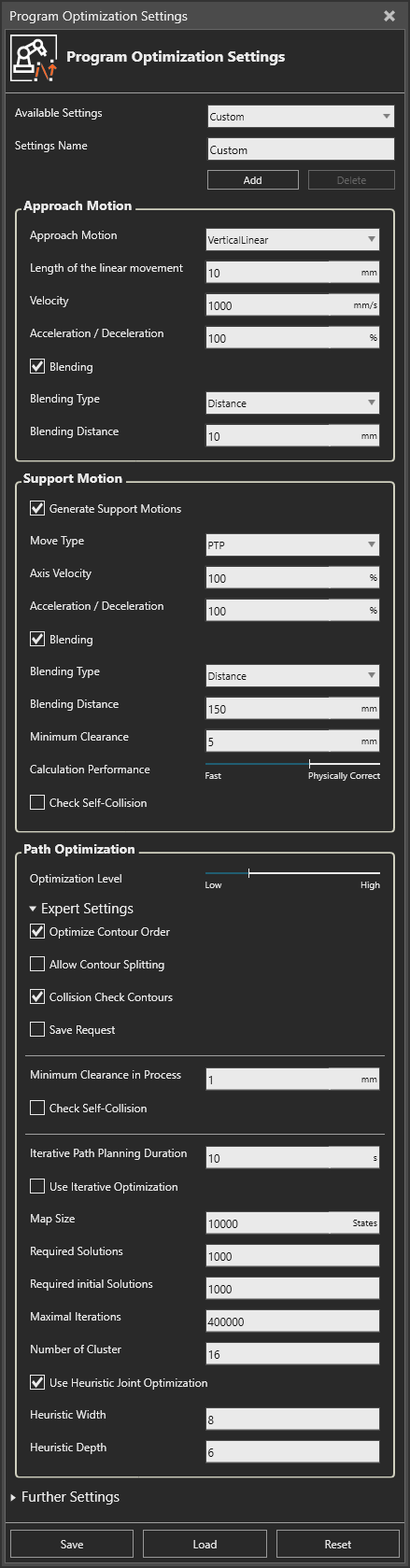
Custom Settings
Approach Motion
| Option | Description | Dependence |
|---|---|---|
| Approach Motion | Selection of various approach movements for entering the contour. Currently, only VerticalLinear is supported. | |
| Length of the linear movement | Defines the distance for the approach movement. This distance must be greater than the minimum clearance of the support motion settings. | |
| Velocity | Defines the desired linear speed in mm/s for LINs. | |
| Acceleration / Deceleration | Value for acceleration and deceleration, expressed as a percentage of the generated motion. | |
| Blending | Switch blending on and off. If blending is selected, the blending type is displayed (Distance) and the blending distance can be specified in mm in the field below. | |
| Blending Type | Selection for the different blending typs. Currently only distance is supported. | “Blending” active |
| Blending Distance | Specifies the distance for blending in mm. | “Blending” active & “Blending Type” Distance |
Support Motion
| Option | Description | Dependence |
|---|---|---|
| Generate Support Motions | Enables the generation of support motions. This option is currently enabled permanently. | |
| Move Type | Provides a selection of the movement statements that can be generated. Aktuell steht nur PTP zur Auswahl. | |
| Axis Velocity | Defines the desired axis speeds in % for PTPs. | |
| Acceleration / Deceleration | Value for acceleration and deceleration, expressed as a percentage of the generated motion. | |
| Generate as cartesian positions | When this function is enabled, all positions generated by PTP statements are saved as points with the coordinates x, y, z, a, b, c, as well as the tool and base. When it is disabled, the points are saved directly as axis angles. Saving as axis angles is sometimes absolutely necessary, but it has the disadvantage of ignoring the tool and base transformations as well as the absolute measurement on the actual robot. | KUKA Programeditor |
| Blending | Switch blending on and off. If blending is selected, the blending type is displayed (Distance) and the blending distance can be specified in mm in the field below. | |
| Blending Type | Selection for the different blending typs. Currently only distance is supported. | “Blending” active |
| Blending Distance | Specifies the distance for blending in mm. | “Blending” active & “Blending Type” Distance |
| Minimum Clearance | Defines a minimum distance that should be held between two objects. The value must be greater than 0. If it is greater than the approach distance, the approach distance will be adjusted accordingly. | |
| Calculation Performance | Specifies whether priority is given to the accuracy of the result or to the speed of the calculation. Low values may result in collisions not being detected, while higher values may cause calculations to take longer. | |
| Check Self-Collision | Enable or disable the self-collision tests. For more information, see collision lists. |
Path Optimization
| Option | Description | Abhängigkeit |
|---|---|---|
| Optimization Level | Adjustment of the optimization level via 5 different presets from low to high. | |
| Expert Settings | All settings for the program optimization can be viewed and adjusted manually here. | |
| Optimize Contour Order | Change the sequence of the contours for an optimal robot motion sequence. | |
| Allow Contour Splitting | Enables the calculation to split contours if no other solution can be found. | |
| Minimum Clearance in Process | Defines a minimum distance that should be held between two objects. The value must be greater than 0. | |
| Check Self-Collision | Enable or disable the self-collision tests. For more information, see collision lists. | |
| Iterative Path Planning Duration | Defines the iteration duration used to check for collision-free paths between the contours. A value that is too low may result in no connection being found, while a value that is too high may cause the entire optimization process to take a long time. | |
| Use Iterative Optimization | When enabled, the calculation returns the best possible result, but optimization may be slower. When disabled, optimization is faster, but the result may be less accurate. | |
| Map Size | Determines the number of states to be generated in the roadmap. (default 10,000) If the value is too large, the calculation takes longer; if the value is too small, no solution may be found or the quality of the solution may be suboptimal. | “Use Iterative Optimization” active |
| Required Solutions | Number of paths/final results for the entire optimization, from which the best is selected. The larger the number, the better the solution, but the slower the calculation. | |
| Required initial Solutions | Number of results for the initial position, from which paths are calculated. The larger the number, the better the solution, but the slower the calculation. | |
| Maximal Iterations | Maximum number of iterations after which the process is terminated. This value should be as large as possible. | |
| Number of Cluster | Number of solution clusters for selecting the final solution. This value must be smaller than Required Solutions and should be significantly smaller than Required Solutions. | |
| Use Heuristic Joint Optimization | Activates a different Algorithm to calculate the Movements, which is faster but less precise. | |
| Heuristic Width | Parameters for fine-tuning the path search. | “Use Heuristic Joint Optimization” active & cannot be greater than the number of clusters |
| Heuristic Depth | Parameters for fine-tuning the path search. | “Use Heuristic Joint Optimization” active & cannot be greater than the number of clusters |
Further Settings
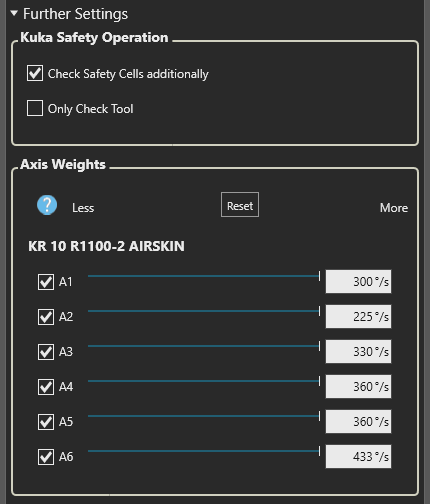
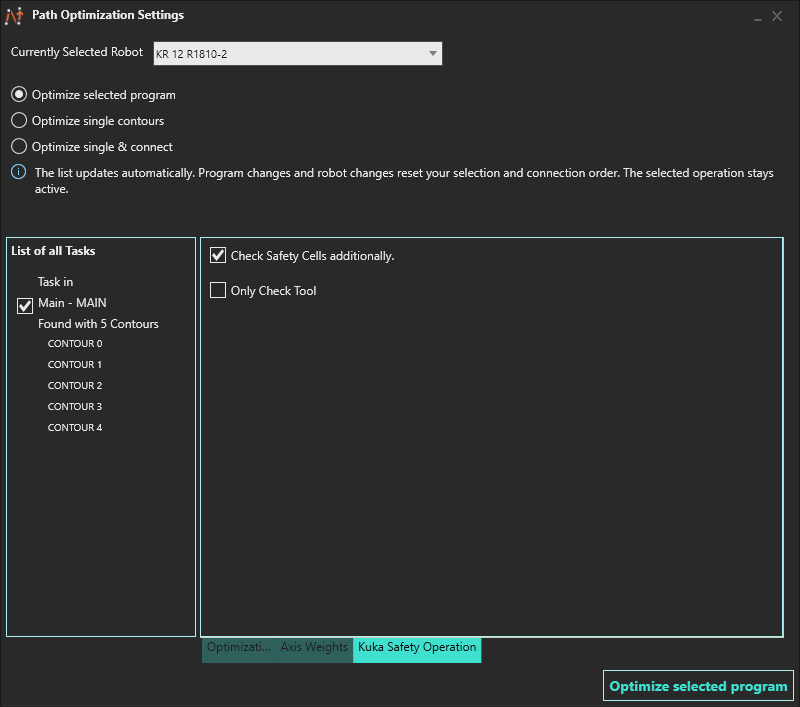
Kuka Safety Operation
- Activates additional verification of the security configurations that have been created.
- You can choose whether to check only the tool or the entire robot and tool.
- Further information can be found in the Safety Configuration section.
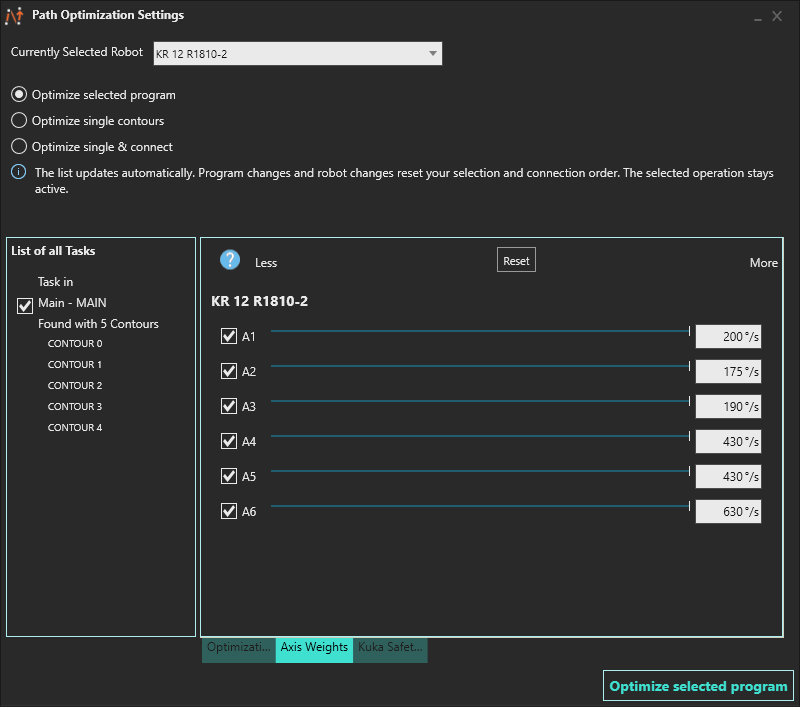
Axis Weights
- Weights the priority with which the axes are moved in motion planning.
- A higher value means that the axis is moved more frequently than the other axes, while a lower value means that it is moved less frequently.
- If an axis is not selected, the planning system will attempt not to move the axis at all.
Save, Load and Reset
- Save stores the current settings in a local configuration file.
- Load allows these settings to be loaded from the configuration file again.
- Reset restores the default settings.