Installation
This guide explains step by step how to successfully install the byte robotics OCP plugin in KUKA.Sim. Please follow the steps carefully to ensure a smooth installation.
Requirements
- KUKA.Sim must be completely closed, including all processes running in the background.
- You need local administrator rights on your computer to perform the installation.
Installation instructions
-
Completely exit KUKA.Sim. Ensure that no associated processes are running in the background, as this may interfere with the installation.
-
Ensure that you have local administrator rights. Without these rights, a successful installation is not possible.
-
Start the installer by executing the file
<OLP-version>_OCP_<OCP-version>.exe. The installer will guide you through the process step by step.
Please note that no older version should be present when installing for the first time. If an older version is detected, follow the instructions displayed in the installer. -
Specify the installation path for KUKA.Sim. In most cases, this is detected automatically and entered correctly. Nevertheless, check that the path is correct before continuing.
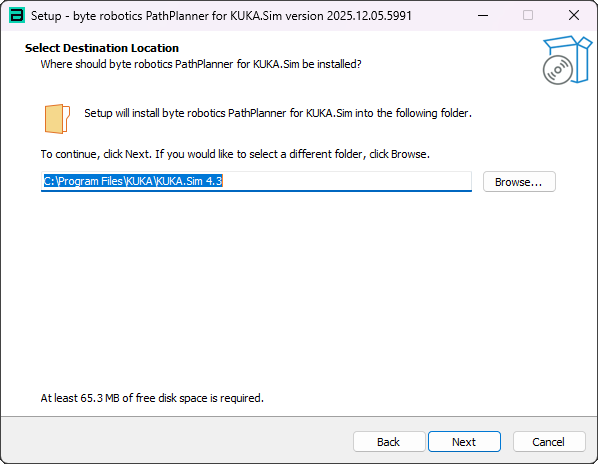
-
Installation of Microsoft Visual C++ Redistributables 2015–2022. If these components are not yet installed on your system, the installer will offer them automatically. This step is only necessary during the initial installation. Please note that you may need to restart your computer for the changes to take effect.
-
Once the installation is complete, please restart KUKA.Sim. This ensures that the OCP plugin is loaded correctly.
-
Next, continue with the License setup. Here you will learn how to activate the licence for the OCP plugin.
If you encounter any problems during installation, we recommend that you first check the suggested solutions in the corresponding documentation. If you still need assistance, our support team will be happy to help. Please do not hesitate to contact us!